How to use PrimeScope
Kako se koristi PrimeScope
PrimeScope is a practice account with virtual money and real market prices, plus chart analysis tools. This guide walks through the terminal, placing orders, adding indicators and saving them as templates and layouts.
PrimeScope je vežbovni nalog sa virtuelnim novcem i pravim tržišnim cenama, uz alate za analizu grafikona. Uputstvo prolazi kroz terminal, otvaranje naloga, dodavanje indikatora i njihovo čuvanje kao šablona i rasporeda.
1LabelOznaka On every screenshot a yellow label with an arrow points to a part of the screen. The number matches the order in which it is explained. Na svakom snimku žuta oznaka sa strelicom pokazuje deo ekrana. Broj prati redosled objašnjenja.
- Getting startedPrvi koraci
- Main toolbarGlavna traka
- Market Watch
- The chartGrafikon
- Orders and positionsNalozi i pozicije
- Drawing toolsAlati za crtanje
- Adding indicatorsDodavanje indikatora
- Templates and My setupsŠabloni i My setups
- LayoutsRasporedi (Layouts)
- Depth of Market (DOM)Dubina tržišta (DOM)
- Keyboard shortcutsPrečice na tastaturi
Getting startedPrvi koraci
- Start the 7-day free trial or buy a subscription on primescope.app. The account number and password arrive by email.
- Log in at primescope.app/login with the account number and password. The same account works in the Windows and macOS app.
- The terminal opens with a practice balance of virtual money. Profit and loss are calculated from real prices, but no real money is ever at risk.
- Pokreni probni period od 7 dana ili kupi pretplatu na primescope.app. Broj naloga i lozinka stižu mejlom.
- Prijavi se na primescope.app/login brojem naloga i lozinkom. Isti nalog radi i u aplikaciji za Windows i macOS.
- Terminal se otvara sa vežbovnim saldom u virtuelnom novcu. Dobit i gubitak se računaju po pravim cenama, ali pravi novac nikad nije u igri.
The terminal at a glance
Terminal na prvi pogled
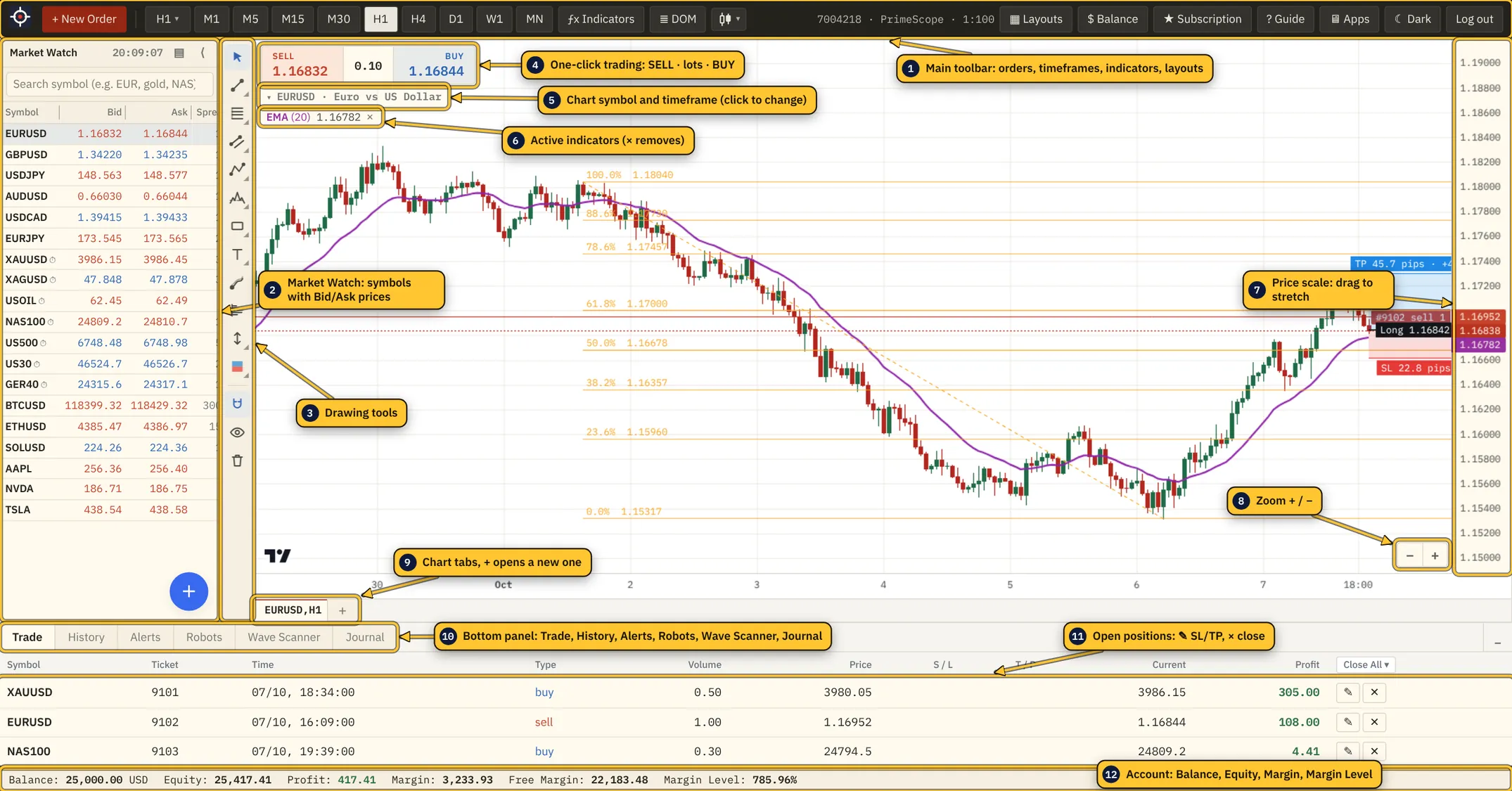
- Balance is the account money without open positions; Equity adds their current profit or loss.
- Margin is the amount held for open positions (position value ÷ leverage). Margin Level = Equity ÷ Margin. Below 50% the platform closes the position with the largest loss first (stop out).
- Market Watch, panel sizes, the chart, indicators and drawings are remembered in the browser. Save them as a layout to keep them on every device.
- Balance je novac na nalogu bez otvorenih pozicija; Equity dodaje njihov trenutni profit ili gubitak.
- Margin je iznos zauzet otvorenim pozicijama (vrednost pozicije ÷ poluga). Margin Level = Equity ÷ Margin. Ispod 50% platforma prvo zatvara poziciju sa najvećim gubitkom (stop out).
- Market Watch, veličine panela, grafikon, indikatori i crteži se pamte u browseru. Sačuvaj ih kao raspored da bi bili isti na svakom uređaju.
Main toolbarGlavna traka

- + New Order opens the order window (also F9).
- Timeframes: M1, M5, M15, M30, H1, H4, D1, W1, MN. The ▾ button lists all of them.
- ƒx Indicators opens the list of indicators and the templates (chapters 7 and 8).
- ◆ Pro Tools holds what makes SPM Trader different: the SPM Score, Elliott Waves (auto) and the Wave Scanner, Smart Money (structure, order blocks, liquidity, chart patterns, divergences), Intermarket (SMT Divergence, a synthetic Dollar Index, COT Positioning and the Correlation Matrix), Market Regime, Order Flow Bubbles, the liquidity heatmap and Depth of Market. Each tool has a one-line description and a badge: Setups (the tool can also draw entry, stop and target levels, chapter 7) or Context (an analysis aid without levels of its own). At the top of the menu, ⚡ TURBO checks every live Market Watch instrument with the Pro Tools you have switched on (all of them if none is on) and lists the bullish and bearish ones at the level you pick (90 / 11 or 80 / 21); click a row to open that chart. Below it, My setups saves the whole set-up under a name (chapter 8).
- ≣ DOM opens the Depth of Market for crypto (chapter 10). The next button switches the chart type.
- ▦ Layouts saves and loads the whole workspace (chapter 9). $ Balance sets the practice balance (virtual money) of the account. ★ Subscription shows your plan, ? Guide opens this guide, Apps the desktop downloads, and the theme button switches light and dark.
- + New Order otvara prozor za nalog (i taster F9).
- Periodi: M1, M5, M15, M30, H1, H4, D1, W1, MN. Dugme ▾ prikazuje sve.
- ƒx Indicators otvara spisak indikatora i šablone (poglavlja 7 i 8).
- ◆ Pro Tools sadrži ono po čemu je SPM Trader poseban: SPM Score, Elliott Waves (auto) i Wave Scanner, Smart Money (struktura, order blokovi, likvidnost, formacije, divergencije), Intermarket (SMT divergencija, sintetički Dollar Index, COT Positioning i Correlation Matrix), Market Regime, Order Flow Bubbles, heatmap likvidnosti i Depth of Market. Uz svaki alat stoji opis u jednom redu i oznaka: Setups (alat može da nacrta i nivoe ulaza, stopa i cilja, poglavlje 7) ili Context (pomoć za analizu, bez sopstvenih nivoa). Na vrhu menija, ⚡ TURBO jednim klikom proverava sve instrumente iz Market Watch-a čije je tržište otvoreno sa Pro alatima koje si uključio (bez uključenih: sve) i ispisuje bullish i bearish na pragu koji izabereš (90 / 11 ili 80 / 21); klik na red otvara taj grafikon. Ispod toga, My setups čuva ceo setup pod imenom (poglavlje 8).
- ≣ DOM otvara dubinu tržišta za kripto (poglavlje 10). Sledeće dugme menja tip grafikona.
- ▦ Layouts čuva i učitava ceo radni prostor (poglavlje 9). $ Balance podešava vežbovni saldo (virtuelni novac) naloga. ★ Subscription prikazuje pretplatu, ? Guide otvara ovo uputstvo, Apps desktop aplikacije, a dugme za temu menja svetlu i tamnu.
Market Watch
The list of instruments you follow, with live Bid and Ask prices. A greyed row with a red lamp means the market is closed (lamp colours). ⏱ view marks a delayed price: you can follow the chart, and trading opens as soon as the price is real-time again (practice accounts trade only on real-time prices).
Lista instrumenata koje pratiš, sa Bid i Ask cenama uživo. Posivljen red sa crvenom lampicom znači da je tržište zatvoreno (boje lampice). ⏱ view označava cenu sa zakašnjenjem: grafikon se prati, a trgovanje se otvara čim cena ponovo bude u realnom vremenu (na vežbovnom nalogu se trguje samo po ceni u realnom vremenu).
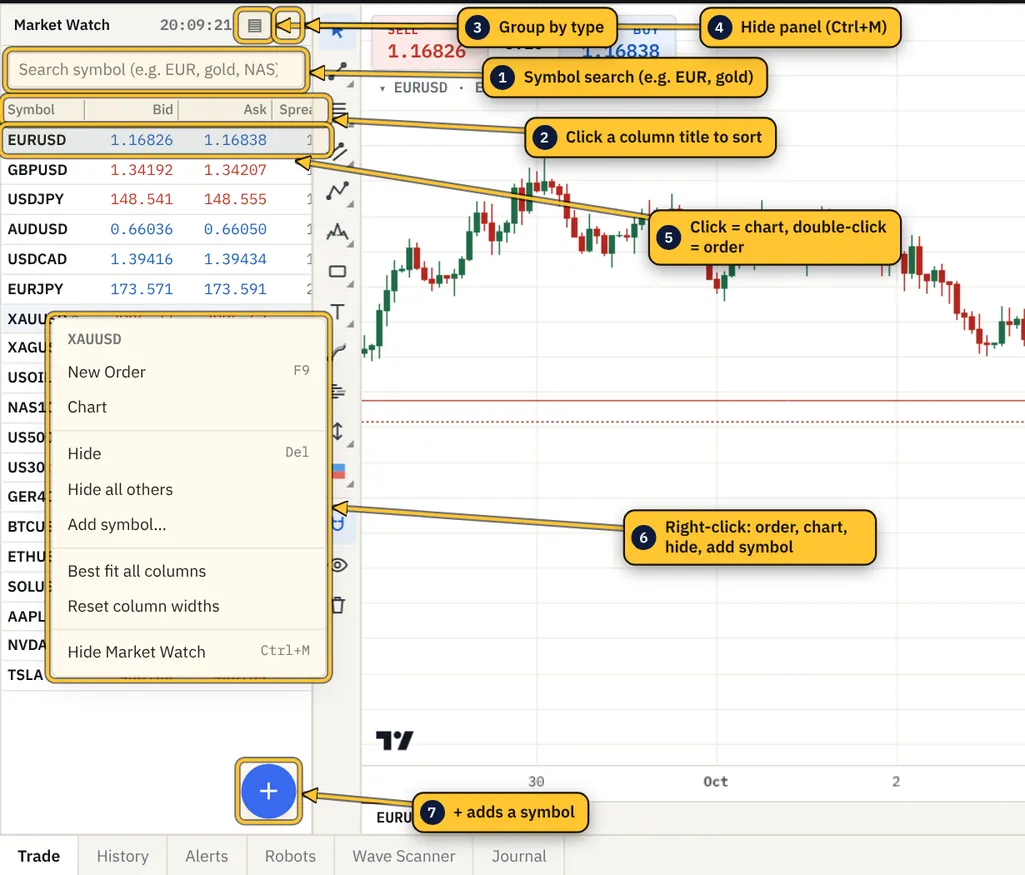
- Click a symbol to show it on the chart, double-click to open an order.
- Right-click for the menu: New Order, Chart, Hide, Hide all others, Add symbol.
- + (bottom right) adds a symbol: type part of the name (GBP, oil, Apple, DAX) and click it.
- Click a column title to sort; drag the edge of a title to resize the column.
- Ctrl+M or ⟨ hides the whole panel to make the chart wider.
- Klik na simbol ga prikazuje na grafikonu, dupli klik otvara nalog.
- Desni klik otvara meni: New Order, Chart, Hide, Hide all others, Add symbol.
- + (dole desno) dodaje instrument: ukucaj deo imena (GBP, oil, Apple, DAX) i klikni na njega.
- Klik na naslov kolone sortira; prevlačenje ivice naslova menja širinu kolone.
- Ctrl+M ili ⟨ sakriva ceo panel, pa je grafikon širi.
- Sydney 07:00–16:00 Sydney time
- Tokyo 09:00–18:00 Tokyo time
- London 08:00–17:00 London time
- New York 08:00–17:00 New York time
- Two colours two sessions overlap (e.g. London + New York)
- White open, outside the main sessions (crypto at the weekend)
- Red market closed (weekend, daily break, holiday); hover shows when it opens
- Grey no price yet
- Sidnej 07:00–16:00 po vremenu Sidneja
- Tokio 09:00–18:00 po vremenu Tokija
- London 08:00–17:00 po londonskom vremenu
- Njujork 08:00–17:00 po njujorškom vremenu
- Dve boje dve sesije se preklapaju (npr. London + Njujork)
- Bela tržište radi, van glavnih sesija (kripto vikendom)
- Crvena tržište zatvoreno (vikend, dnevna pauza, praznik); prelaz mišem pokazuje kad se otvara
- Siva još nema cene
The chartGrafikon
- Scroll with the mouse wheel or drag the chart; + and − zoom. Drag the price scale up or down to stretch the chart vertically.
- Click the symbol title above the chart to switch to another instrument.
- Chart tabs under the chart: + opens another chart, Ctrl+F6 moves to the next tab, a middle click closes a tab.
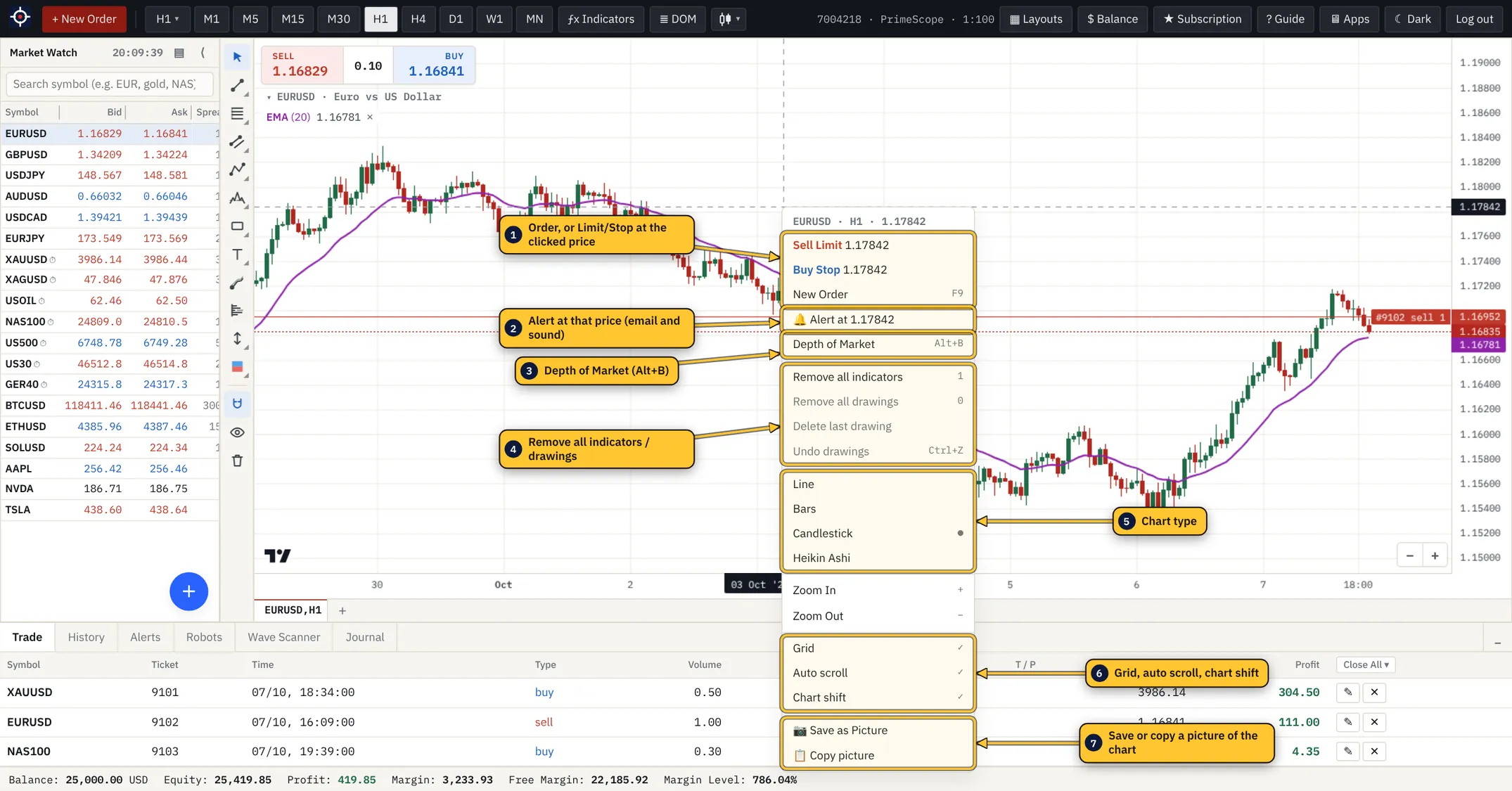
- Right-click (or double-click) the chart for the menu below. At the clicked price it offers a Limit or Stop order and a price alert.
- Pomeranje točkićem miša ili prevlačenjem grafikona; + i − zumiraju. Prevlačenje cenovne skale gore-dole razvlači grafikon po visini.
- Klik na naziv simbola iznad grafikona menja instrument.
- Kartice grafikona ispod grafikona: + otvara još jedan grafikon, Ctrl+F6 prelazi na sledeću karticu, srednji klik zatvara karticu.
- Desni klik (ili dupli klik) na grafikon otvara meni sa slike. Na ceni gde je kliknuto nudi Limit ili Stop nalog i alarm.
Orders and positionsNalozi i pozicije
Opening a position
Otvaranje pozicije
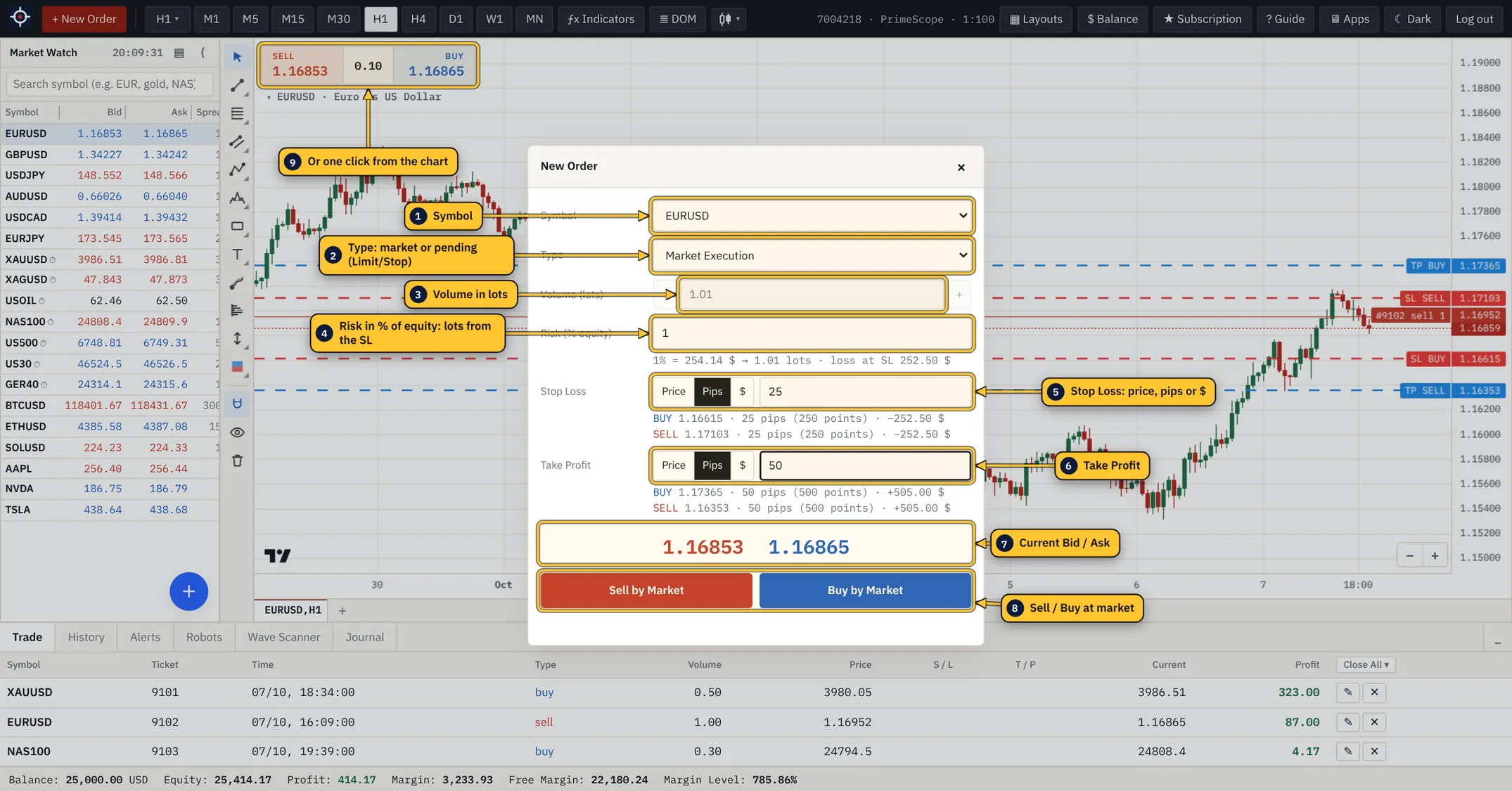
- Press + New Order or F9 and choose the symbol.
- Type: Market Execution opens at the current price. Buy/Sell Limit and Buy/Sell Stop wait for the order price you enter.
- Enter the volume in lots, or a risk in % of equity: with a Stop Loss set, the platform calculates the lots for you.
- Set Stop Loss and Take Profit as a price, in pips or in $. The lines appear on the chart, and the hint shows the loss or profit at each level.
- Press Sell by Market or Buy by Market. Buy fills at Ask, Sell at Bid.
- Pritisni + New Order ili F9 i izaberi instrument.
- Type: Market Execution otvara po trenutnoj ceni. Buy/Sell Limit i Buy/Sell Stop čekaju cenu naloga koju upišeš.
- Upiši količinu u lotovima ili rizik u % kapitala: uz postavljen Stop Loss platforma sama računa lotove.
- Postavi Stop Loss i Take Profit kao cenu, u pipsima ili u $. Linije se vide na grafikonu, a ispod polja piše gubitak ili dobit na tom nivou.
- Pritisni Sell by Market ili Buy by Market. Buy se izvršava po Ask, Sell po Bid ceni.
One-click trading: the SELL and BUY buttons in the top-left corner of the chart open a position immediately with the lots typed between them.
Trgovanje jednim klikom: dugmad SELL i BUY u gornjem levom uglu grafikona odmah otvaraju poziciju sa lotovima upisanim između njih.
Managing positions
Upravljanje pozicijama
- ✎ in the position row changes Stop Loss and Take Profit; clicking a position or SL/TP line on the chart opens the same window.
- ✕ closes the position. Close All ▾ closes all, only profitable or only losing positions.
- Closed trades are in History, platform messages in Journal. Fundamentals shows the company profile, valuation, quarterly results and dividends for stocks and ETFs; Portfolio tracks what you hold elsewhere at live prices (tracking only, no orders).
- ✎ u redu pozicije menja Stop Loss i Take Profit; isti prozor otvara i klik na liniju pozicije ili SL/TP na grafikonu.
- ✕ zatvara poziciju. Close All ▾ zatvara sve, samo profitabilne ili samo gubitničke pozicije.
- Zatvoreni nalozi su u History, poruke platforme u Journal. Fundamentals prikazuje profil kompanije, vrednovanje, kvartalne rezultate i dividende za akcije i ETF-ove; Portfolio prati šta držiš na drugom mestu po živim cenama (samo praćenje, bez naloga).
Drawing toolsAlati za crtanje
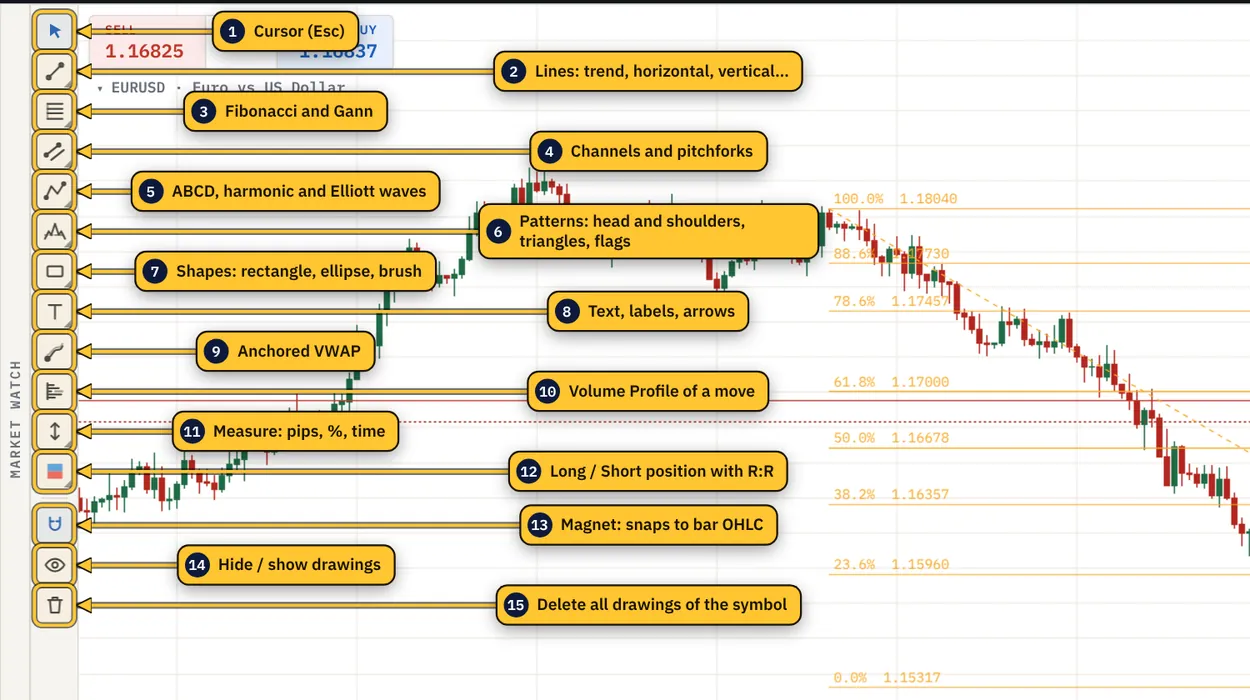
- Each button is a group. A small triangle in its corner means more tools: hold the button, right-click it or click the triangle to choose another one (for example horizontal line, Fibonacci extension, Elliott correction).
- Click a tool, then click the points on the chart. A hint at the bottom of the chart tells you which point comes next.
- Click a drawing to select it: drag its points to move them, and a small bar appears with color, line width and delete. Delete also removes it, Ctrl+Z undoes. A selected horizontal line has 🔔 Alert for a price alert.
- Magnet snaps points to the open, high, low or close of a bar. Hold Ctrl while drawing to switch it for one move.
- Long / Short Position draws entry, SL and TP with R:R; select it and press ▶ Place order to open the order window with those levels.
- Drawings are saved per symbol and stay on every timeframe.
- Svako dugme je grupa. Mali trougao u uglu znači da ima još alata: drži dugme pritisnuto, klikni desnim tasterom ili na trougao i izaberi drugi (npr. horizontalna linija, Fibonacci ekstenzija, Elliott korekcija).
- Klikni na alat, pa na tačke na grafikonu. Na dnu grafikona piše koja je sledeća tačka.
- Klik na crtež ga bira: tačke se prevlače, a pojavi se mala traka sa bojom, debljinom linije i brisanjem. Delete ga takođe briše, Ctrl+Z vraća. Izabrana horizontalna linija ima 🔔 Alert za alarm na ceni.
- Magnet lepi tačke za open, high, low ili close sveće. Drži Ctrl dok crtaš da ga privremeno uključiš ili isključiš.
- Long / Short Position crta ulaz, SL i TP sa R:R; izaberi ga i pritisni ▶ Place order da se otvori nalog sa tim nivoima.
- Crteži se čuvaju po simbolu i vide se na svim periodima.
Adding indicatorsDodavanje indikatora
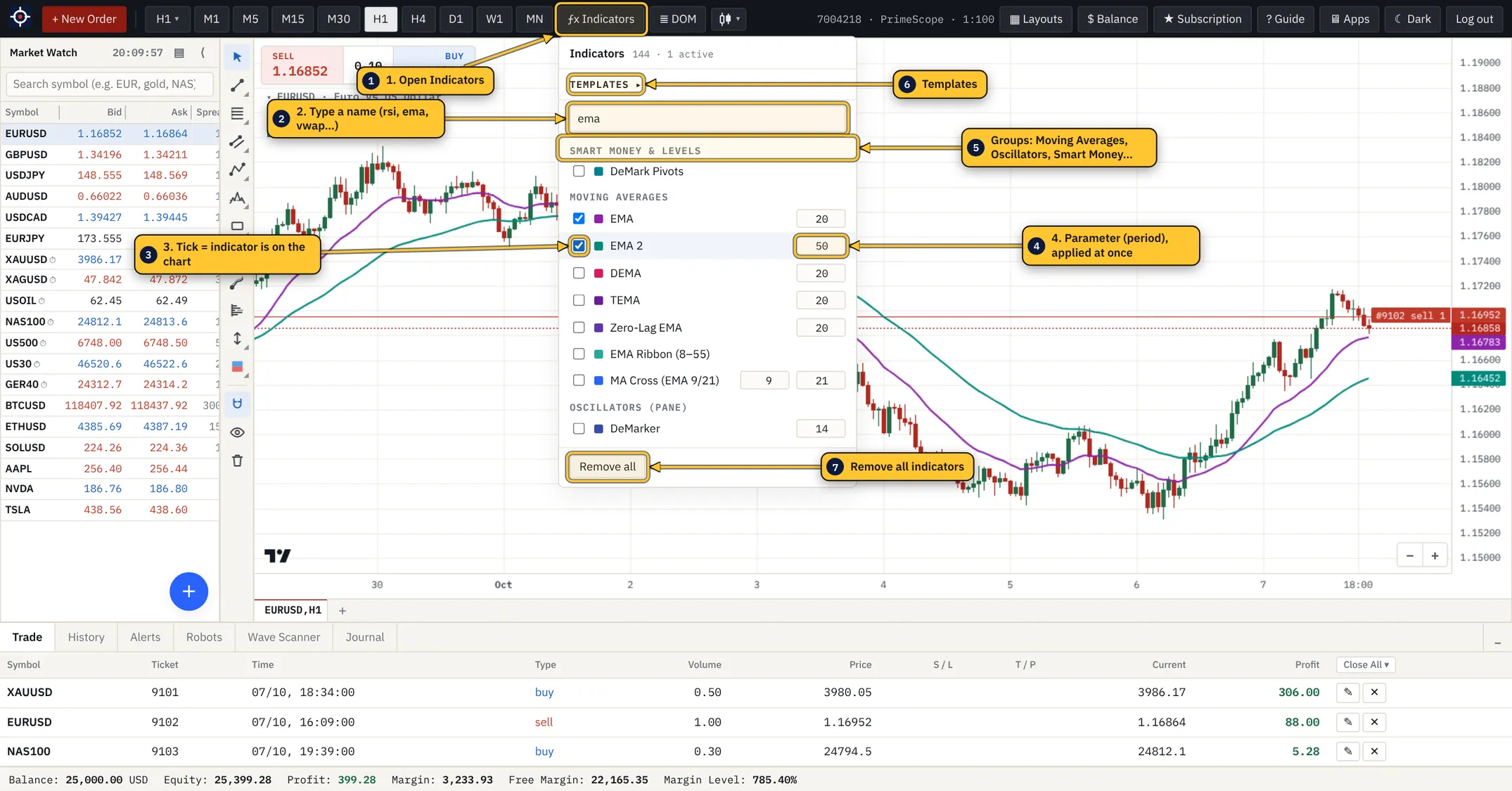
- Click ƒx Indicators in the toolbar.
- Type part of the name in the search field:
rsi,ema,vwap,order… The list keeps only the matches. - Tick the checkbox next to the indicator. It appears on the chart at once.
- Change the parameters in the fields to the right (hover a field to see its name, for example Period). The chart redraws immediately; there is no Save button.
- Close the list with Esc or a click outside it.
- Klikni ƒx Indicators na glavnoj traci.
- Ukucaj deo imena u polje za pretragu:
rsi,ema,vwap,order… Lista zadržava samo pogotke. - Štikliraj kućicu pored indikatora. Odmah se pojavljuje na grafikonu.
- Promeni parametre u poljima desno (pređi mišem preko polja da vidiš šta je, npr. Period). Grafikon se odmah ponovo iscrtava; dugme za čuvanje ne postoji.
- Zatvori listu sa Esc ili klikom pored nje.
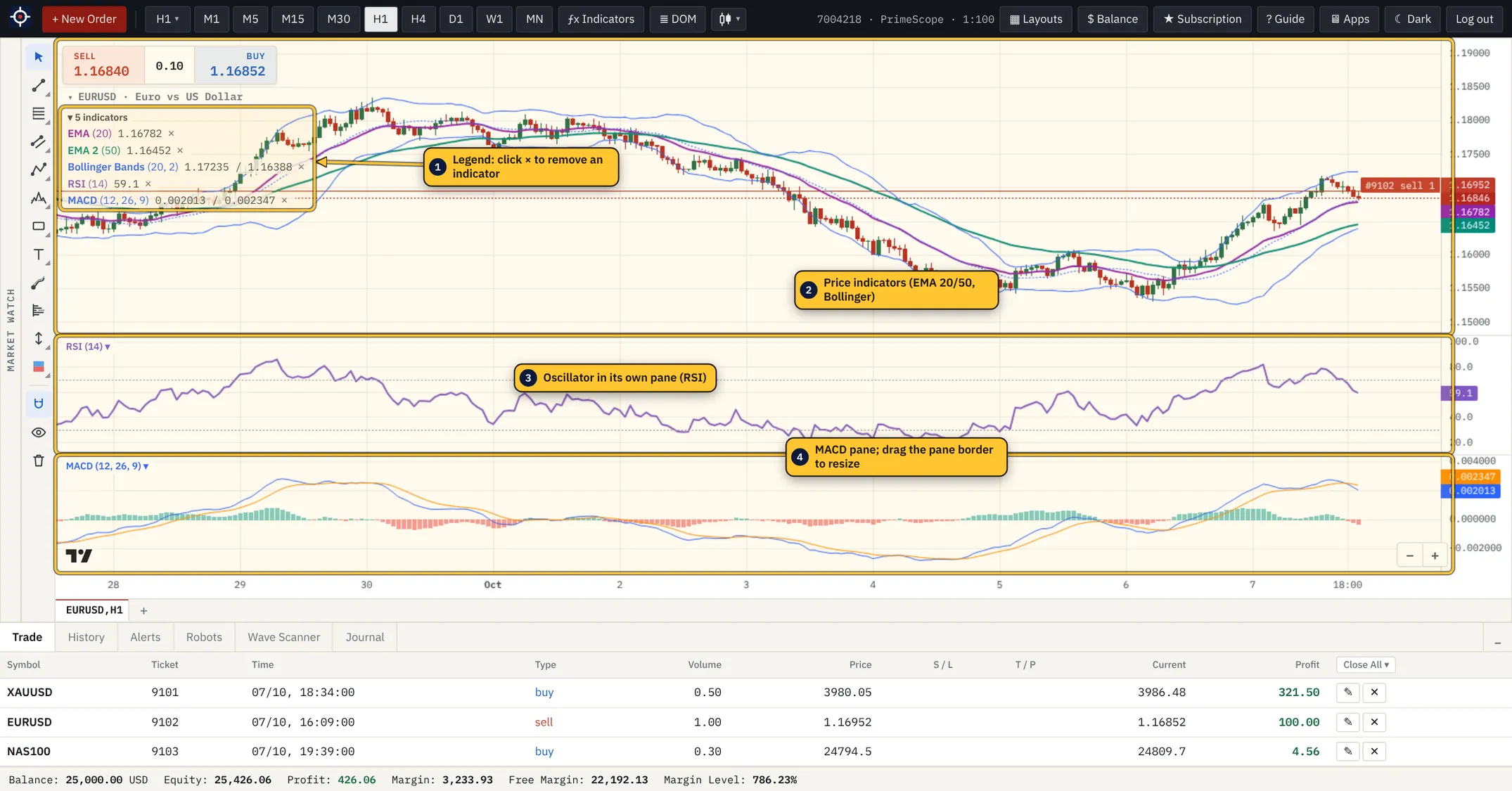
- Remove one indicator: click × next to its name in the legend at the top left of the chart, untick it in the list, or right-click an oscillator pane (RSI, MACD…) and choose Remove.
- Remove all: the button at the bottom of the list, or Remove all indicators in the chart's right-click menu.
- Some indicators exist twice (EMA and EMA 2, SMA and SMA 2) so you can show two periods at once, for example EMA 20 and EMA 50.
- Premium tools (SPM Score, Market Structure, Order Blocks, Liquidity, Divergences, Chart Patterns, Elliott Waves, Order Flow) are in ◆ Pro Tools, next to ƒx Indicators. They are calculated on the server and need an active subscription or trial. Searching in ƒx Indicators (for example
elliott) finds them too. - Setups: SPM Score, Elliott Waves (auto), Market Structure, Order Blocks, Liquidity, Chart Patterns and RSI Divergences have a Setups button in ◆ Pro Tools (turning it on also turns the tool on). The chart then shows where that tool's rules lined up: ▲ or ▼ on that candle with a tag and the R:R, and lines for entry, stop, target and target 2. Finished ones fade and get ✓ (target reached), ✕ (stop reached) or ⌛ (expired). The legend shows the active one and how the past ones ended, as hypothetical results. The levels come from the server, from closed candles only, on M15 to D1. They are an analysis aid, not advice. Tools marked Context (Order Flow Bubbles, Liquidity Heatmap, Depth of Market) show where large orders are, with no entry, stop or target of their own.
- Uklanjanje jednog indikatora: klik na × pored njegovog imena u legendi gore levo na grafikonu, skini kvačicu u listi, ili desni klik na panel oscilatora (RSI, MACD…) pa Remove.
- Uklanjanje svih: dugme Remove all na dnu liste, ili Remove all indicators u meniju desnog klika na grafikonu.
- Neki indikatori postoje dvaput (EMA i EMA 2, SMA i SMA 2) da bi istovremeno prikazao dva perioda, npr. EMA 20 i EMA 50.
- Premium alati (SPM Score, Market Structure, Order Blocks, Liquidity, Divergences, Chart Patterns, Elliott Waves, Order Flow) su u meniju ◆ Pro Tools, pored ƒx Indicators. Računaju se na serveru i traže aktivnu pretplatu ili probni period. Pretraga u ƒx Indicators (npr.
elliott) ih takođe nalazi. - Setups: SPM Score, Elliott Waves (auto), Market Structure, Order Blocks, Liquidity, Chart Patterns i RSI Divergences imaju dugme Setups u meniju ◆ Pro Tools (uključuje i sam alat). Grafikon tada prikazuje gde su se ispunila pravila tog alata: ▲ ili ▼ na toj sveći sa oznakom i R:R, i linije ulaza (Entry), stopa (Stop), cilja (Target) i drugog cilja (Target 2). Završeni postaju bledi i dobijaju ✓ (cilj dostignut), ✕ (stop dostignut) ili ⌛ (isteklo). Legenda prikazuje aktivni i kako su se završili prethodni, kao hipotetičke ishode. Nivoe računa server, samo iz zatvorenih sveća, na periodima M15–D1. To je pomoć za analizu, ne savet. Alati sa oznakom Context (Order Flow Bubbles, Liquidity Heatmap, Depth of Market) pokazuju gde su krupni nalozi, bez sopstvenog ulaza, stopa i cilja.
Templates and My setupsŠabloni i My setups
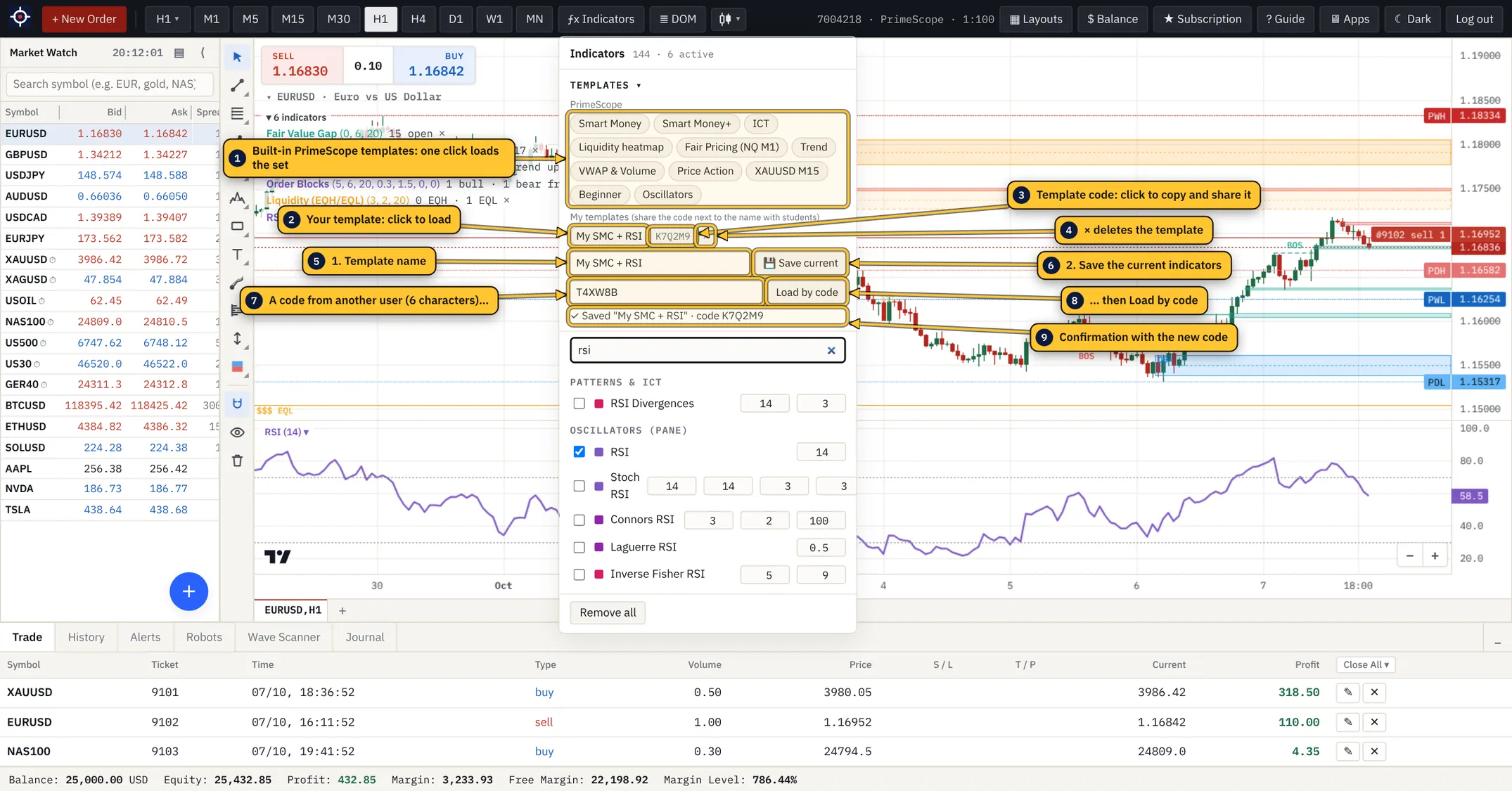
A template is a saved set-up of the chart: the indicators and Pro Tools you switched on with their parameters, which of them draw Setups, and the TURBO level. Load it on any symbol with one click, or share it with someone through a 6-character code. The same list lives in two places: at the top of the ƒx Indicators list (Templates, click Templates ▸ if the section is collapsed) and in ◆ Pro Tools under My setups.
Šablon je sačuvan setup grafikona: uključeni indikatori i Pro alati sa parametrima, kod kojih je uključen Setups i TURBO prag. Učitava se jednim klikom na bilo kom simbolu, a može da se podeli sa drugima preko koda od 6 znakova. Ista lista je na dva mesta: na vrhu liste ƒx Indicators (Templates, klikni Templates ▸ ako je deo skupljen) i u ◆ Pro Tools pod My setups.
Making your own template
Pravljenje svog šablona
- Turn on the indicators and Pro Tools you want, set their parameters, switch on Setups where you want levels, and pick the TURBO level (chapter 7). You can also start from a built-in template and add to it.
- Open ◆ Pro Tools → My setups (or ƒx Indicators → My templates) and type a name in the Name field, for example
My SMC H1. - Press 💾 Save current (or Enter). The template appears under My templates with its code next to the name.
- Uključi indikatore i Pro alate koje želiš, podesi parametre, uključi Setups tamo gde hoćeš nivoe i izaberi TURBO prag (poglavlje 7). Možeš da kreneš i od gotovog šablona pa da dodaš svoje.
- Otvori ◆ Pro Tools → My setups (ili ƒx Indicators → My templates) i upiši ime u polje Name, npr.
My SMC H1. - Pritisni 💾 Save current (ili Enter). Šablon se pojavljuje pod My templates, sa kodom pored imena.
- Load: click the template name. It replaces the indicators currently on the chart.
- Update: save again under the same name; the template is overwritten.
- Share: click the code next to the name to copy it and send it to a student or a friend. They paste it in Template code and press Load by code.
- Delete: × next to the code.
- Built-in templates (Smart Money, ICT, Trend, VWAP & Volume, Beginner, Oscillators and others) are ready-made sets; hover one to see what it contains.
- Učitavanje: klik na ime šablona. Zamenjuje indikatore koji su trenutno na grafikonu.
- Izmena: sačuvaj ponovo pod istim imenom; šablon se prepisuje.
- Deljenje: klik na kod pored imena ga kopira, pa ga pošalji učeniku ili prijatelju. On ga upiše u Template code i pritisne Load by code.
- Brisanje: × pored koda.
- Gotovi šabloni (Smart Money, ICT, Trend, VWAP & Volume, Beginner, Oscillators i drugi) su pripremljeni setovi; pređi mišem preko imena da vidiš šta sadrže.
LayoutsRasporedi (Layouts)
A layout is a snapshot of the whole workspace: chart tabs, symbols and timeframes, chart type, indicators, drawings (optional), Market Watch, panel sizes and theme. Layouts are stored with your account, so the same layout opens in the browser and in the desktop app.
Raspored je snimak celog radnog prostora: kartice grafikona, simboli i periodi, tip grafikona, indikatori, crteži (po izboru), Market Watch, veličine panela i tema. Rasporedi se čuvaju uz nalog, pa je isti raspored dostupan u browseru i u desktop aplikaciji.
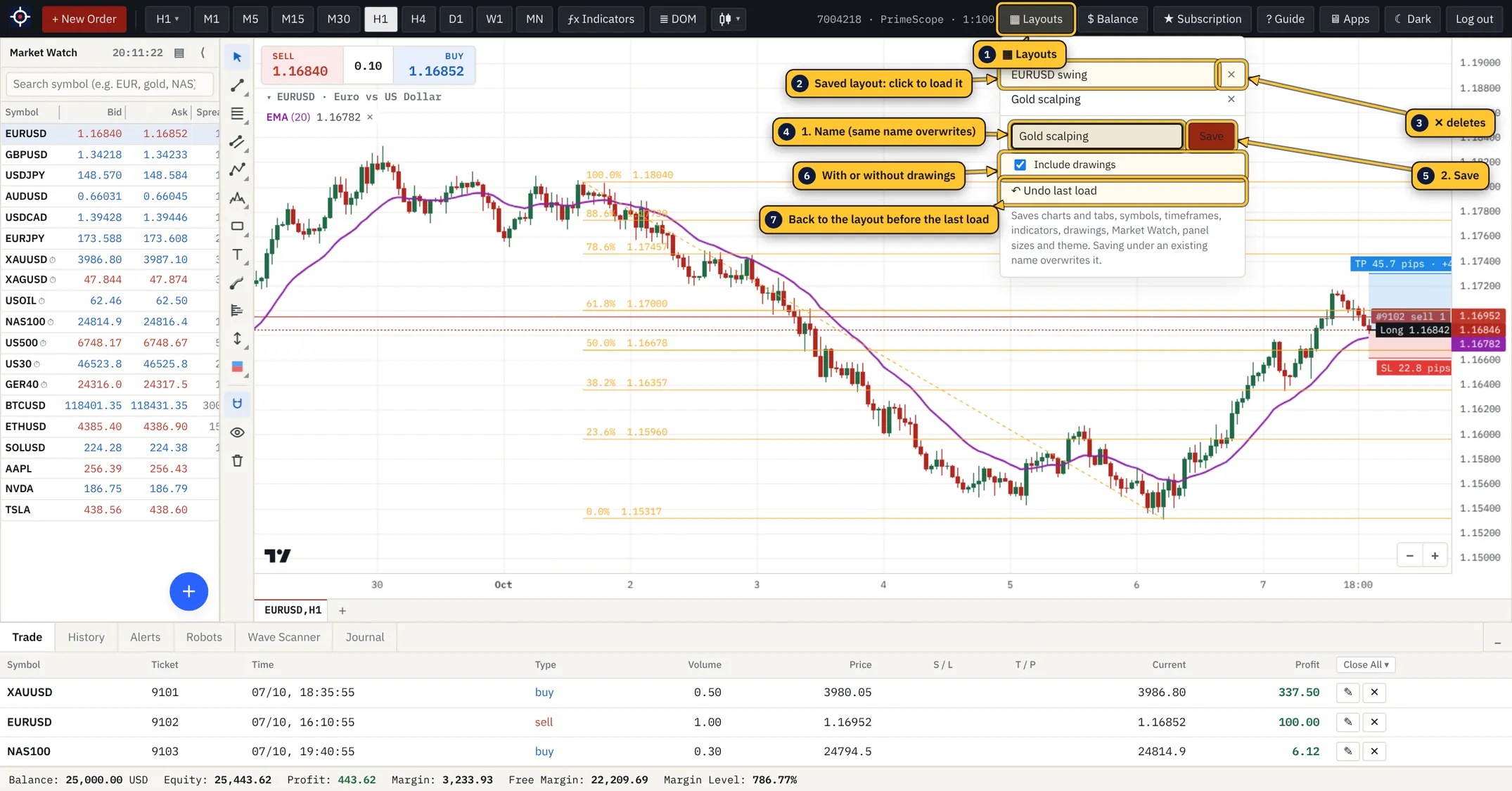
- Arrange the terminal the way you like it.
- Click ▦ Layouts, type a name (for example
Gold scalping) and leave Include drawings ticked if the drawings should be saved too. - Press Save. Saving under an existing name overwrites that layout after you confirm.
- To switch, click a layout name in the same menu and confirm. The terminal reloads with that layout.
- Changed your mind? ↶ Undo last load brings back the workspace you had before.
- Namesti terminal kako ti odgovara.
- Klikni ▦ Layouts, upiši ime (npr.
Gold scalping) i ostavi štikliran Include drawings ako i crteži treba da se sačuvaju. - Pritisni Save. Čuvanje pod postojećim imenom prepisuje taj raspored, posle potvrde.
- Za promenu klikni na ime rasporeda u istom meniju i potvrdi. Terminal se ponovo učitava sa tim rasporedom.
- Predomislio si se? ↶ Undo last load vraća radni prostor koji si imao pre toga.
| Indicator template | Šablon indikatora | Layout | Raspored | |
|---|---|---|---|---|
| WhereGde | ƒx Indicators → Templates | ▦ Layouts | ||
| SavesČuva | Indicators and their parametersIndikatore i njihove parametre | Charts, symbols, timeframes, indicators, drawings, Market Watch, panels, themeGrafikone, simbole, periode, indikatore, crteže, Market Watch, panele, temu | ||
| LoadingUčitavanje | Instant, on the current chartOdmah, na trenutnom grafikonu | The terminal reloads; Undo is availableTerminal se ponovo učitava; postoji Undo | ||
| SharingDeljenje | Yes, with a 6-character codeDa, kodom od 6 znakova | No, only on your accountNe, samo na tvom nalogu | ||
| Use it forZa šta | A strategy's indicator set (SMC, trend, scalping)Set indikatora jedne strategije (SMC, trend, skalping) | A complete workspace per market or sessionCeo radni prostor po tržištu ili sesiji |
Depth of Market (DOM)Dubina tržišta (DOM)
The DOM shows the live spot order book from Binance for crypto symbols: how much is waiting to be bought (Bid) and sold (Ask) at each price, and how much has traded there. Forex and index CFDs have no central order book, so the window explains that instead.
DOM prikazuje živu spot knjigu naloga sa Binance-a za kripto simbole: koliko čeka za kupovinu (Bid) i prodaju (Ask) na svakoj ceni i koliko je tu izvršeno. Forex i indeksi (CFD) nemaju centralnu knjigu naloga, pa prozor to i napiše.
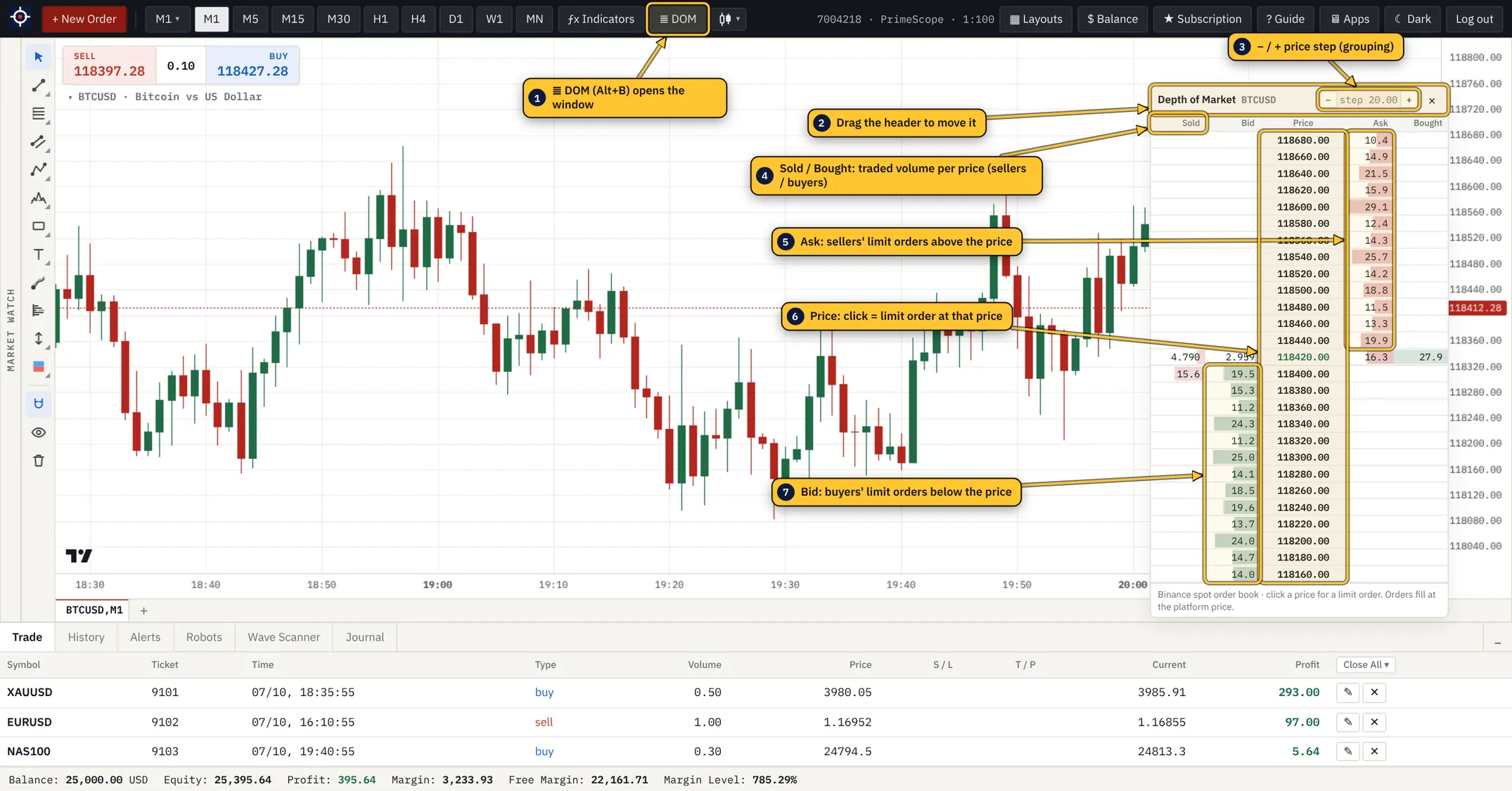
- Open a crypto symbol (for example BTCUSD) and press ≣ DOM or Alt+B.
- Use − / + in the header to group prices in smaller or larger steps.
- Large numbers in Bid or Ask are big resting orders (walls) where price often reacts.
- Click a price to prepare a limit order at it. Orders always fill at the platform price.
- Drag the header to move the window; × closes it.
- Otvori kripto simbol (npr. BTCUSD) i pritisni ≣ DOM ili Alt+B.
- Sa − / + u zaglavlju grupišeš cene u manje ili veće korake.
- Veliki brojevi u Bid ili Ask koloni su veliki nalozi na čekanju (zidovi) na kojima cena često reaguje.
- Klik na cenu priprema limit nalog na toj ceni. Nalozi se uvek izvršavaju po ceni platforme.
- Zaglavlje prevuci da pomeriš prozor; × ga zatvara.
For the same data on the chart, load the built-in Liquidity heatmap template: order book heatmap under the candles, large trades and cumulative volume delta.
Za iste podatke na samom grafikonu učitaj gotov šablon Liquidity heatmap: toplotna mapa knjige naloga ispod sveća, veliki nalozi i kumulativna razlika volumena (CVD).
Keyboard shortcutsPrečice na tastaturi
| Key | Taster | Action | Radnja |
|---|---|---|---|
| F9 | New orderNovi nalog | ||
| + / − | Zoom the chart in / outZumiranje grafikona | ||
| Alt+B | Depth of MarketDubina tržišta | ||
| Ctrl+M | Hide / show Market WatchSakrij / prikaži Market Watch | ||
| Ctrl+F6 | Next chart tab (with Shift: previous)Sledeća kartica grafikona (uz Shift: prethodna) | ||
| Esc | Back to the cursor, close a menu or windowNazad na kursor, zatvara meni ili prozor | ||
| Delete | Delete the selected drawingBriše izabrani crtež | ||
| Ctrl+Z | Undo drawingsVraćanje crteža | ||
| Ctrl (hold)(drži) | Switch the magnet while drawingPrivremeno menja magnet dok crtaš |